
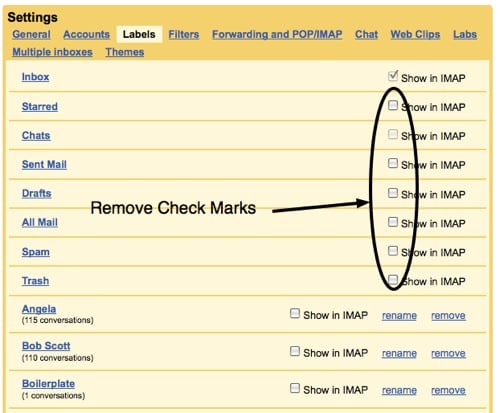
Dan posted earlier today over at Whatsoniphone about my discovery that if you enable Advanced IMAP controls in GMAIL Labs (look under settings) and remove the check marks from your folders so that only the INBOX is checked – your iPhone will retrieve email at a blistering pace as opposed to the 3 to 5 minutes that it previously took.
Almost from the day that I bought the first generation iPhone I have been bothered by slow retrieval of my Gmail. Since I have a large number of folders, it makes perfect sense that this tip to stop synchronizing the other folders would significantly speed up Gmail retrieval on iPhone. UPDATE 4-7-09: I had to go back into the labels and place a check mark next to “trash, sent mail and all mail” so that I could delete mail. So far everything seems to be running as speedy as ever.
Google Labs – Advanced IMAP Controls


By removing check marks from the IMAP folders my phone is amazingly fast. You have no idea how slow the retrieval of Gmail was before I thought to check this…
Wow…this is awesome. You are my hero Wayne!
Good call, Wayne! This not only helped my iPhone, but also Mail.app on my Mac as well!
Only problem with this is I use IMAP in Apple Mail too…unticking all those folders would mean I wouldn't be able to search my emails from my desktop and have them sync with my online mail.
This is definitely not the best solution for anyone bringing in Gmail via APP to the desktop. Too bad iPhone/Touch did not allow for specifying ON THE PHONE which folders to sync.
I've always thought that iPhone's email capabilities were neglected and underpowered. I really expected apple to beef them up performance wise.
I may have been a little too aggressive in removing the sync checkmarks – I added back sent, all and drafts (the iPhone was telling me it couldn't find the folders when I tried to use them to delete or store mail).
How do you add them back? Thanks
“Too bad iPhone/Touch did not allow for specifying ON THE PHONE which folders to sync.”
Exactly what I was thinking – I use GMail with IMAP across Mac, PC and iPod Touch and losing the extended functionality just isn't acceptable …
Great tip Wayne!
Quick thing worth noting is that in order to see these check boxes and be able to modify them, you have to have 'Advanced IMAP Controls' enabled under the 'Labs' tab in Settings – otherwise you won't see them at all …
Good point. And if you're using Google Apps for Domain – I think you must log into your domain (on Google) as Administrator and turn on the ability to see the labs options.
Tried this and it seems to work–>One simple tweak that made my iPhone Gmail retrieval lightning fast | Gear Diary http://bit.ly/au21YZ